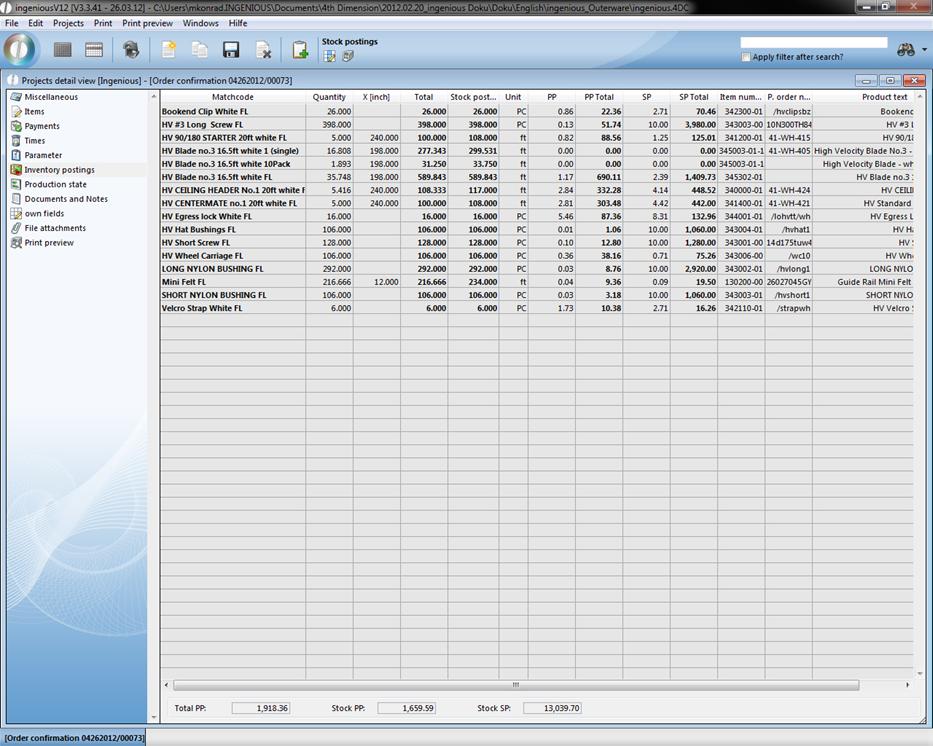
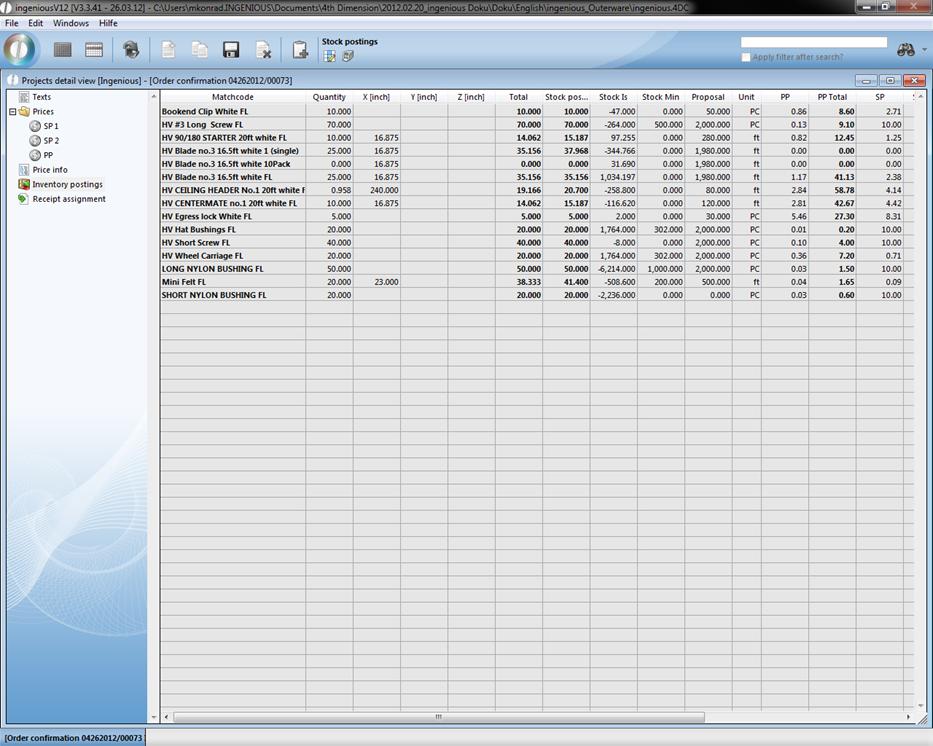
In the detail view of an order confirmation and in the detail view of single items there is the new category “Inventory postings”. Here you find a listing of all stock kept items of the project.
Attention: The automatic stock posting when the project is finalized has to be enabled. You can also bind the inventory posting to the finalization of an invoice or delivery document. Then the new category will be displayed in the specific project.
With the button  the window “Item stockview” will open up, where you can enable and disable several columns with a double click. Also you can change the order of the columns by drag and drop them in the list.
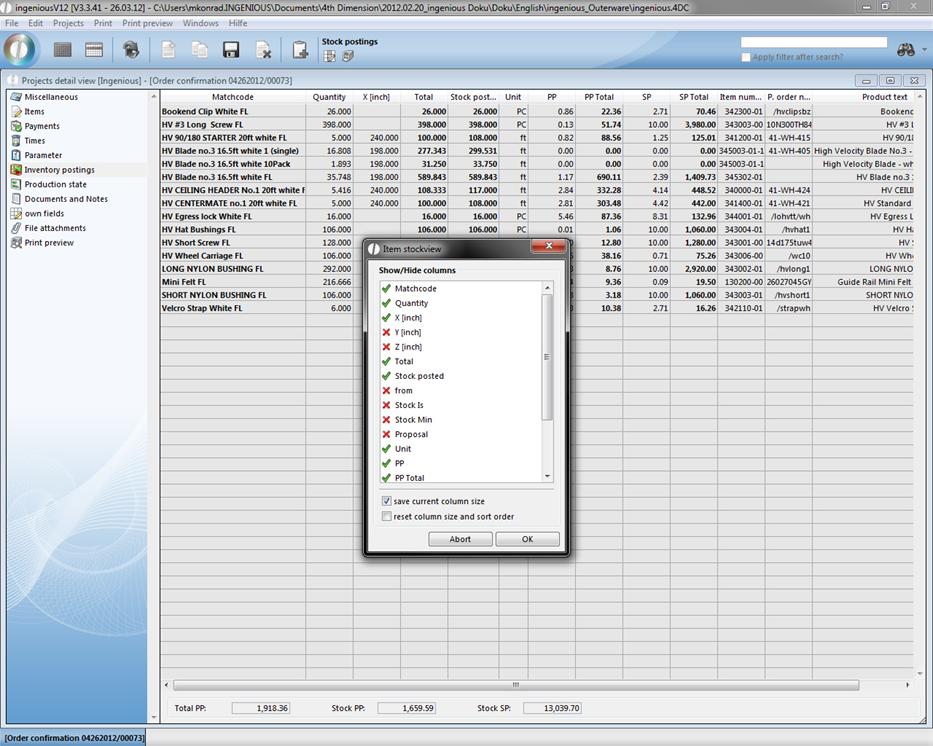
When you enable the field “save current column size”, all your settings in the detail view will be applied. With the field “reset column size and sort order” the settings will be reset.
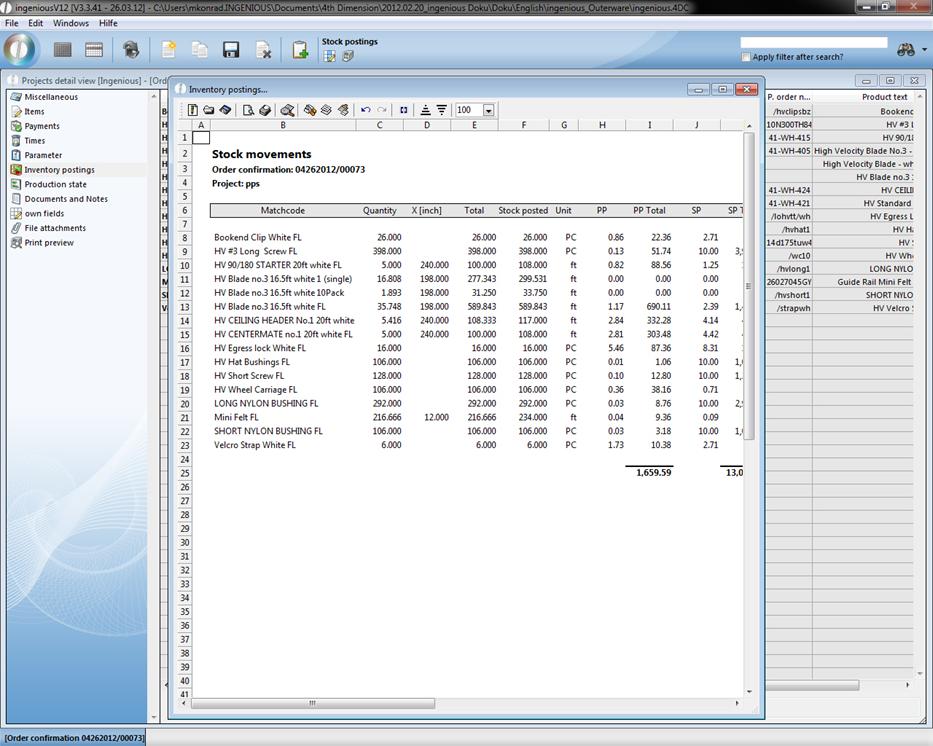
If you want to print the listed items, click on the button  . In the printout the column size of the detail view will be applied and the totals will be summed.
As mentioned in the beginning, the category “Inventory postings” will be displayed in the item detail view. When you double click on a item in the category “Items”, the detail view of the item will open up.
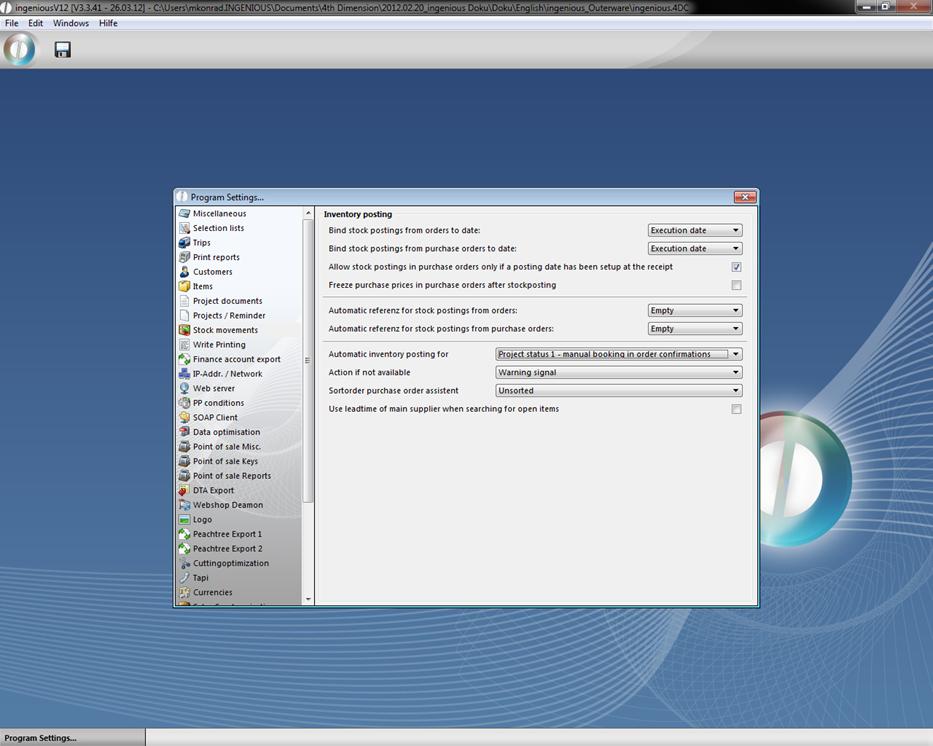
You can also bind the inventory posting to any date of the project and define a automatic reference. The corresponding settings you can find in the category “Stock movements”.